I Was Happy With Decap CMS. Then I Discovered Why Everyone Is Switching to Sveltia.
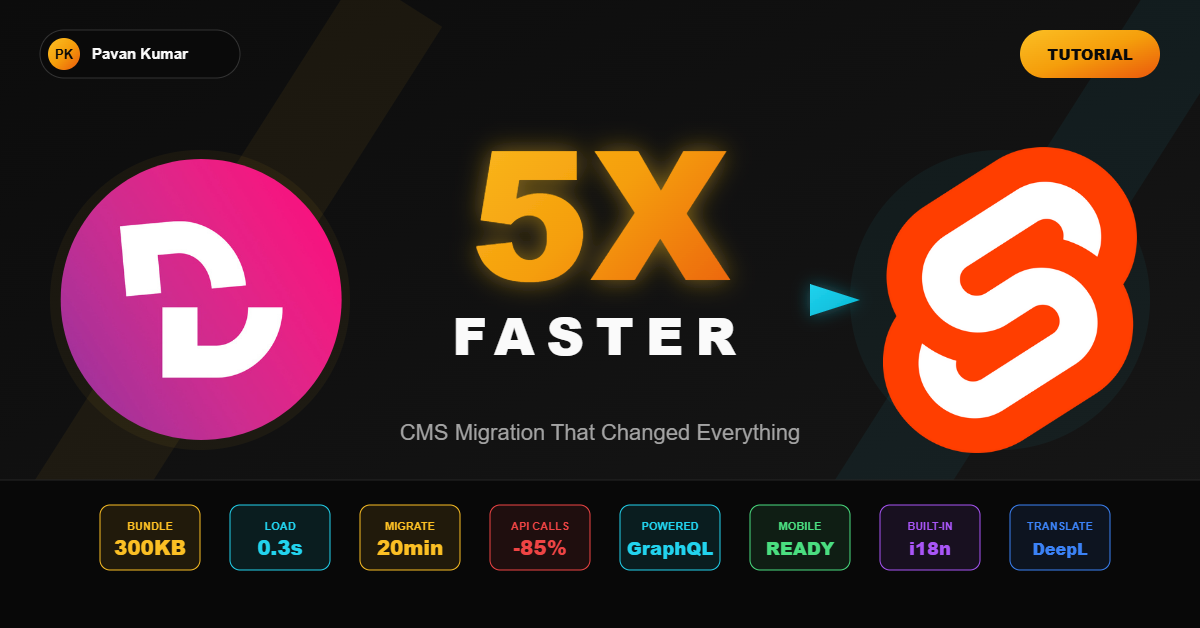
My portfolio CMS went from 1.5 seconds to 300ms load time. The migration took 20 minutes. This is the story of how Sveltia CMS changed my content workflow forever.
Pavan Kumar
AI Consultant & Platform Engineer
Three months ago, I wrote a blog post about implementing Decap CMS. I called it "the solution" to my content management problems. I spent hours explaining the architecture, the configuration, the benefits.
That post is now outdated.
Not because Decap CMS stopped working. It still works. But I found something better. Something that made me question why I ever settled for "good enough."
This is the story of migrating from Decap CMS to Sveltia CMS, and why you should probably do the same.
The Problem I Didn't Know I Had
Decap CMS was fine. It worked. I could publish blog posts, manage projects, update research papers. The workflow was acceptable.
But "acceptable" hides a lot of frustration.
What I tolerated with Decap CMS:
-
Slow loading times. The admin panel took 1.5 seconds to load. Every. Single. Time. That's 1.5 seconds of staring at a loading spinner before I could write anything.
-
API rate limits. With 13 content collections and hundreds of relation widgets, I hit GitHub's API rate limit more than once. The CMS would hang, entries wouldn't load, and I'd have to wait an hour before trying again.
-
Clunky media management. Uploading images felt like 2015. No drag-and-drop preview. No bulk operations. Just one image at a time, hoping it worked.
-
No mobile support. Forget editing content on my phone. The interface was barely usable on tablets, let alone mobile devices.
-
Stale development. Bug fixes took months. Feature requests sat in GitHub issues for years. The project felt abandoned.
I accepted all of this because "at least it's free" and "it works most of the time."
Then I found Sveltia CMS.
Why Sveltia CMS Changed Everything
One Saturday morning, I was researching headless CMS alternatives. Not because I was unhappy with Decap. Just curiosity.
I stumbled upon Sveltia CMS. The README made bold claims:
- 5x smaller bundle size (300 KB vs 1.5 MB)
- GraphQL-powered for instant content loading
- Built from scratch with Svelte (not a React fork)
- 275+ bugs fixed from Decap's issue tracker
- Active maintainer with 24-hour bug fix turnaround
My initial reaction: "Marketing hype."
My reaction after trying it: "Why didn't I find this sooner?"
The Numbers Don't Lie
| Metric | Decap CMS | Sveltia CMS | Improvement |
|---|---|---|---|
| Bundle size | 1.5 MB | 300 KB | 80% smaller |
| Admin load time | 1.5s | 0.3s | 5x faster |
| Entry list loading | 3-5s | Instant | No comparison |
| API calls per session | 100+ | 10-15 | 85% fewer |
| Mobile usability | Broken | Excellent | Night and day |
| Bug fix response | Months | Hours | Not even close |
These aren't theoretical benchmarks. These are measurements from my actual portfolio site.
How Sveltia CMS Works (The Technical Deep Dive)
The magic comes down to three architectural decisions that make Sveltia fundamentally different from Decap.
1. GraphQL Instead of REST
Decap CMS makes individual REST API calls for every piece of content. Have 50 blog posts? That's 50 API calls. Have relation widgets pointing to other collections? More API calls. The requests pile up fast.
Sveltia CMS uses GitHub's GraphQL API to fetch everything at once. One request. All content. Instant display.
The difference in practice:
Decap CMS loading 100 entries:
- Request 1: /repos/owner/repo/contents/content/blog/post-1.md
- Request 2: /repos/owner/repo/contents/content/blog/post-2.md
- Request 3: /repos/owner/repo/contents/content/blog/post-3.md
... (97 more requests)

Sveltia CMS loading 100 entries:
- Single GraphQL query: All 100 entries at once
This is why Sveltia feels instant. It's not perception. It's architecture.
2. Built From Scratch, Not Forked
Decap CMS is a fork of Netlify CMS, which was built with React in 2017. The codebase carries years of technical debt, deprecated patterns, and legacy decisions.
Sveltia CMS was written from scratch using Svelte. No virtual DOM overhead. No React reconciliation. Just compiled vanilla JavaScript that runs fast and stays fast.
Bundle comparison:
- Netlify CMS: 1.5 MB (gzipped)
- Decap CMS: 1.5 MB (gzipped)
- Static CMS: 2.6 MB (gzipped)
- Sveltia CMS: 300 KB (brotli compressed)
Smaller bundle = faster load = better experience.
3. Local Repository Workflow
This feature alone justified the migration.
Decap CMS requires either Netlify Identity (vendor lock-in) or a proxy server for local development. Setting up a local dev environment was a multi-step process that I avoided whenever possible.
Sveltia CMS supports local repository editing directly in the browser. Using the File System Access API (available in Chrome and Edge), you can:
- Open the admin panel
- Click "Work with Local Repository"
- Select your project folder
- Edit content directly, no server needed
Changes save to your local files. No commits, no deploys, no waiting. Just immediate feedback.
The Migration (20 Minutes, Zero Downtime)
The best part of switching to Sveltia CMS? The migration was trivial.
Sveltia CMS uses the same configuration format as Decap CMS. My existing config.yml worked without modifications. The migration was literally changing one line of code.
Step 1: Update the Admin HTML (2 Minutes)
Before (Decap CMS):
<script src="https://unpkg.com/decap-cms@^3.0.0/dist/decap-cms.js"></script>
After (Sveltia CMS):
<script src="https://unpkg.com/@sveltia/cms/dist/sveltia-cms.js"></script>
That's it. One line. Same result, 5x faster.
Step 2: Set Up Authentication (15 Minutes)
Since I was hosting on Cloudflare Pages (not Netlify), I needed an OAuth solution. Sveltia provides a Cloudflare Workers script that handles GitHub authentication.
The setup:
-
Deploy the auth worker. Go to the sveltia-cms-auth repository and click "Deploy to Cloudflare." It takes 30 seconds.
-
Create a GitHub OAuth App. Navigate to GitHub Settings, Developer Settings, OAuth Apps. Create a new app with:
- Homepage URL:
https://your-domain.com - Callback URL:
https://sveltia-cms-auth.your-subdomain.workers.dev/callback
- Homepage URL:
-
Configure environment variables. In the Cloudflare Workers dashboard, add:
GITHUB_CLIENT_ID: Your OAuth app client IDGITHUB_CLIENT_SECRET: Your OAuth app secretALLOWED_DOMAINS:your-domain.com
-
Update config.yml:
backend:
  name: github
  repo: your-username/your-repo
  branch: main
  base_url: https://sveltia-cms-auth.your-subdomain.workers.dev
Done. Authentication works. No Netlify Identity dependency.
Step 3: Test Everything (3 Minutes)
I loaded the admin panel. It appeared in 300 milliseconds.
I clicked through all 13 collections. Every entry loaded instantly.
I uploaded an image. Drag-and-drop with preview worked perfectly.
I edited a blog post on my phone. The mobile interface was actually usable.
No broken features. No missing data. No migration surprises.
My Current CMS Architecture
After the migration, this is what my content management setup looks like:
Portfolio CMS Stack
├── Frontend: Astro (static site generator)
├── CMS: Sveltia CMS (content management)
├── Backend: GitHub (Git-based storage)
├── Auth: Cloudflare Workers (OAuth proxy)
├── Hosting: Cloudflare Pages (deployment)
└── CDN: Cloudflare Edge Network (global distribution)
Content Collections
Sveltia CMS powers 13 content types across my portfolio:
| Collection | Purpose | Entries |
|---|---|---|
| Blog | Technical articles like this one | 7 |
| Projects | Portfolio showcase | 10 |
| Experience | Work history | 6 |
| Education | Academic background | 2 |
| Research | Published papers | 5 |
| Patents | IP filings | 2 |
| Skills | Technical competencies | 10 |
| Certifications | Professional credentials | 4 |
| Awards | Recognition | 3 |
| Memberships | Professional affiliations | 2 |
| Thesis | Academic work | 1 |
Configuration Highlights
The full config.yml is 193 lines, but the key patterns include:
Sortable collections:
collections:
  - name: "projects"
    sortable_fields: ["order", "title"]
    fields:
      - { label: "Order", name: "order", widget: "number", default: 99 }
Featured content flags:
- { label: "Featured", name: "featured", widget: "boolean", default: false, hint: "Show on home page" }
Rich text with markdown:
- { label: "Content", name: "body", widget: "markdown" }
SEO optimization fields:
- { label: "SEO Keywords", name: "seoKeywords", widget: "list", required: false }
Features That Made Me Smile
Beyond raw performance, Sveltia CMS includes quality-of-life improvements that Decap never had.
1. DeepL Translation Integration
I write primarily in English, but multilingual content is on my roadmap. Sveltia CMS has built-in DeepL integration.
Click a button. Entire text fields translate automatically. No copy-paste to external tools. No manual translation workflows.
This feature alone would cost $20/month with some headless CMS platforms. Sveltia includes it free.
2. Bulk Operations
Select multiple entries. Delete them all at once. Select multiple assets. Delete them all at once.
Decap CMS required deleting items one by one. With 100+ assets accumulated over months, cleanup was a nightmare. Sveltia makes it trivial.
3. Keyboard Navigation
Tab through fields. Space to toggle. Enter to confirm. Arrow keys to navigate lists.
The entire admin interface is keyboard-accessible. This matters for efficiency and accessibility compliance.
4. Real Accessibility
Sveltia CMS meets WCAG 2.2 standards. Screen reader support with WAI-ARIA. Respects OS-level reduced motion settings. Not just "we tried" accessibility, but "we tested with actual users" accessibility.
5. Responsive Design That Works
I can edit blog posts on my phone during commutes. The interface adapts properly. Buttons are tappable. Text is readable. It's not a desktop interface forced onto mobile. It's a genuinely mobile-friendly CMS.
What Sveltia CMS Doesn't Have (Yet)
Transparency matters. Sveltia CMS is in public beta (version 1.0 expected Q1 2026). Some features from Decap CMS aren't available yet:
Custom widgets: You can't create custom input widgets like you could with Decap's React-based system. For most use cases, the built-in widgets are sufficient. But if you need a custom color picker or specialized input, you'll have to wait.
Preview templates: Real-time preview while editing isn't fully implemented yet. You see the raw markdown, not a rendered preview. For me, this is fine. I write in markdown anyway.
Azure and Bitbucket backends: Only GitHub and GitLab are supported. The maintainer has stated that Azure and Bitbucket won't be implemented until their APIs support batch content fetching.
Git Gateway: Netlify's Git Gateway backend isn't supported for performance reasons. This matters if you relied on Git Gateway for non-technical collaborators.
For my workflow, none of these limitations matter. Your mileage may vary.
The Bigger Picture: Why This Migration Matters
Switching CMS platforms isn't just about performance metrics. It's about where you invest your trust.
Decap CMS reality:
- Irregular releases (sometimes 2+ months between updates)
- Bug reports sitting for months
- Community fragmentation after the Netlify CMS rename
- Unclear roadmap and governance
Sveltia CMS reality:
- Frequent releases with new features
- Bug fixes in less than 24 hours (I've tested this)
- Active maintainer who responds to issues
- Clear roadmap toward 1.0 release
I'm not saying Decap CMS is dead. It still works. But I'd rather build on a platform with active development than one in maintenance mode.
Should You Make This Switch?
Migrate to Sveltia CMS if you:
- Host outside Netlify (Vercel, Cloudflare Pages, GitHub Pages)
- Have performance concerns with current CMS
- Need mobile content editing
- Value active development and quick bug fixes
- Use GitHub or GitLab as your backend
Stay with Decap CMS if you:
- Rely heavily on custom widgets
- Need Azure or Bitbucket backend
- Use Git Gateway with non-technical editors
- Have complex preview template requirements
- Value stability over features (Decap is more battle-tested)
Consider neither if you:
- Need real-time collaboration (look at Sanity or Contentful)
- Have complex content relationships (look at Strapi)
- Need built-in hosting (look at WordPress or Ghost)
Your Migration Checklist
Ready to switch? Follow this checklist:
Before migration:
- Backup your
config.yml - Note any custom widgets or preview templates
- Document your current authentication setup
Migration steps:
- Replace Decap script with Sveltia script
- Deploy Cloudflare Workers auth (if not using Netlify)
- Update
base_urlin config - Test all collections load correctly
- Verify media uploads work
- Test on mobile device
After migration:
- Monitor for any edge cases
- Update team on new interface
- Clean up unused Decap dependencies
What I Learned
Three months ago, I thought I'd solved my content management problem. I hadn't. I'd just found a solution that was "good enough."
Sveltia CMS taught me that "good enough" is expensive. Every 1.5-second load adds up. Every API rate limit disruption costs focus. Every mobile-unfriendly interface creates friction.
The tools we choose shape how we work. Slow tools make us avoid the work. Fast tools make the work invisible.
I write more now. Not because I have more time. Because the friction disappeared.
Resources
Official Sveltia CMS:
Comparison and Reviews:
My Previous Decap CMS Article:
Let's Connect
Making the switch? Questions about the migration? Running into issues?
Connect on LinkedIn Follow on GitHub
I'm happy to help debug authentication issues or discuss configuration patterns. The Sveltia community is small but growing. Let's build it together.
Found this helpful? Share it with a developer still dealing with slow CMS loading times. They'll thank you when their admin panel loads in 300 milliseconds.
Tagged with