Git vs GitHub CLI: I Wasted 2 Hours Daily on GitHub. These Commands Changed Everything.
I was switching between terminal and browser 50+ times per day. Then I discovered GitHub CLI. Time saved per day went from 2 hours to 5 minutes.
Pavan Kumar
AI Consultant & Platform Engineer
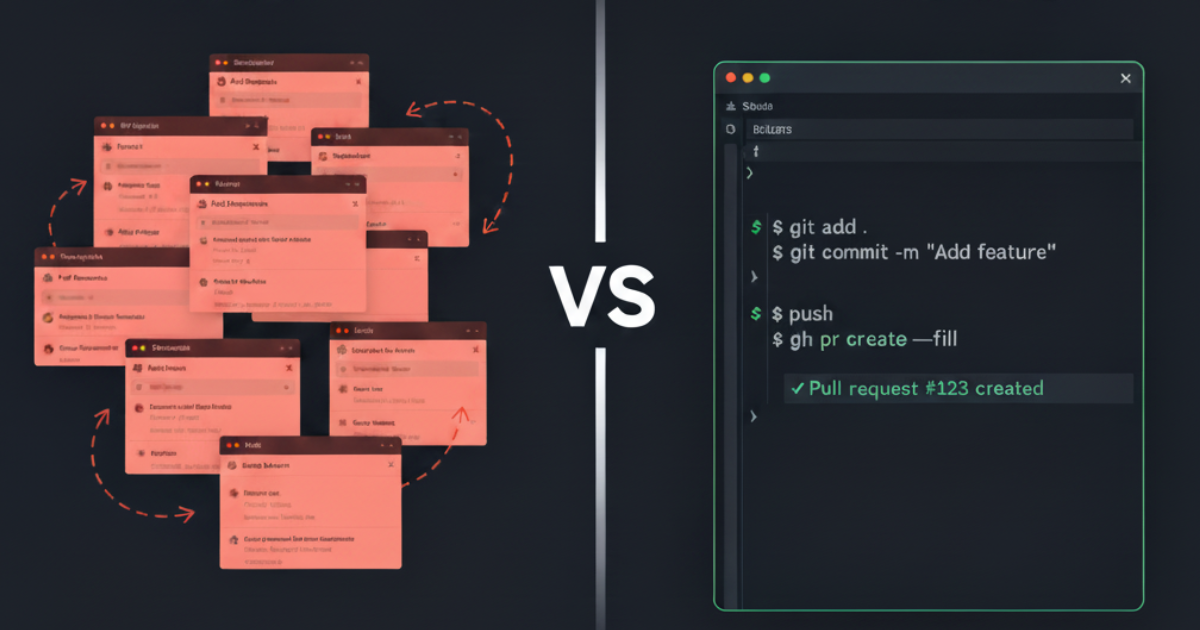
Three months ago, I was that developer. You know the one. Terminal open in one window, GitHub open in three browser tabs, constantly switching back and forth like some kind of digital ping-pong champion.
Create a branch in terminal. Switch to browser. Open a pull request. Back to terminal. Make a commit. Back to browser. Check PR status. Terminal again. Push changes. Browser. Again. And again. And again.
I tracked it one Tuesday afternoon. 50+ context switches. 2 hours of my day, gone.
Then I discovered GitHub CLI. Not "learned about it." Not "heard it existed." Actually used it. Everything changed.
The Pain: Death by a Thousand Context Switches
This is what my typical morning workflow looked like before:
To create and manage one pull request:
git checkout -b feature-branch(Terminal)- Write code (VSCode)
git add .andgit commit(Terminal)git push origin feature-branch(Terminal)- Copy the branch name
- Open GitHub in browser
- Navigate to repository
- Click "New pull request"
- Select branch from dropdown
- Write PR title and description
- Add reviewers manually
- Add labels manually
- Switch back to terminal for more work
- Switch back to browser to check if anyone reviewed
- Repeat steps 13-14 approximately 47 times
Time investment: 15-20 minutes per PR, not counting all the checking back. Mental overhead: Exhausting. Tabs open: Minimum 5 at any given time.
And when someone requested changes? Start the whole cycle over again.
The Breaking Point
It was 3 PM on a Wednesday. I had 8 pull requests open across 3 repositories. My browser had 12 GitHub tabs open. I couldn't remember which PR needed what changes.
I spent 45 minutes just trying to organize my PRs. Not writing code. Not fixing bugs. Just clicking through tabs like a rat in a maze.
There had to be a better way.
What I Wish Someone Had Told Me: Git ≠ GitHub CLI
I had been using Git for 5 years. I thought I knew everything. Turns out, I was missing half the picture.
Think of it like this:
Git is your car. It gets you from point A to point B. You control the steering, the speed, the direction. It works on any road (GitLab, Bitbucket, your own server).
GitHub CLI is your car's integration with the entire city infrastructure. Traffic lights that recognize your car. Parking garages that open automatically. Gas stations that know your payment info. Toll booths you breeze through.
Git manages your code history. GitHub CLI manages your entire GitHub workflow.
You need both. But most developers only know about Git.
Why I Chose GitHub CLI (And Why You Should Too)
I evaluated every option for improving my workflow:
Browser extensions: Still required switching to browser. Minimal time saved.
Git aliases: Could help with Git commands, but couldn't touch GitHub features like PRs and issues.
GitHub Desktop: GUI application. I live in the terminal.
Then I found GitHub CLI. It checked every box:
- Works entirely in terminal (no context switching)
- Manages PRs, issues, releases, and repos
- Supports automation and scripting
- Free and open source
- Works on Windows, macOS, and Linux
The kicker? Over 93.9% of developers use Git, but less than 20% know about GitHub CLI. Most developers are still wasting hours like I was.
How Git and GitHub CLI Work Together
Git handles your local version control. GitHub CLI extends that to handle your entire GitHub workflow.
Five-step flow:
- Git creates and manages your branches locally
- Git commits your changes to local history
- Git pushes to remote repository
- GitHub CLI creates pull requests instantly
- GitHub CLI manages reviews, merges, and deployments
You don't replace Git. You augment it.
The Architecture: What This Looks Like in Practice
Before (Git only):
Terminal (Git commands)
    ↓
Browser (GitHub interface)
    ↓
Manual clicking
    ↓
Context switching
    ↓
Lost productivity
After (Git + GitHub CLI):
Terminal (Git commands)
    ↓
Terminal (gh commands)
    ↓
Everything GitHub
    ↓
Zero context switching
    ↓
Pure productivity
How To Master This (Step-by-Step)
Step 1: Install GitHub CLI (3 minutes)
Windows:
winget install --id GitHub.cli
macOS:
brew install gh
Linux (Ubuntu/Debian):
sudo apt install gh
Linux (Fedora):
sudo dnf install gh
Verify installation:
gh --version
Step 2: Authenticate (2 minutes)
gh auth login
Follow the prompts:
- Choose GitHub.com (or GitHub Enterprise)
- Select HTTPS or SSH (I recommend HTTPS for simplicity)
- Authenticate via browser (easiest) or token
- Done
You're now connected. One time setup. Never again.
Step 3: Learn the Essential Git Commands (You Probably Know These)
These are the Git commands you use daily. Nothing changes about how you use them:
Repository basics:
# Initialize repository
git init

# Check status
git status

# See what changed
git diff
Branch management:
# Create and switch to new branch
git checkout -b feature-name

# Switch branches
git checkout main

# List all branches
git branch -a
Committing changes:
# Stage specific files
git add file1.js file2.css

# Stage all changes
git add .

# Commit with message
git commit -m "Add user authentication feature"

# Amend last commit
git commit --amend
Syncing with remote:
# Push to remote
git push origin branch-name

# Pull latest changes
git pull origin main

# Fetch without merging
git fetch
Viewing history:
# View commit history
git log

# View commit history (one line per commit)
git log --oneline

# View specific file history
git log -- path/to/file
Undoing changes:
# Discard local changes
git checkout -- file.js

# Unstage file
git reset HEAD file.js

# Undo last commit (keep changes)
git reset --soft HEAD~1

# Undo last commit (discard changes)
git reset --hard HEAD~1
These are your bread and butter. 90% of developers use these 15-20 commands daily.
Step 4: Learn the Game-Changing GitHub CLI Commands
This is where everything changes. These commands eliminate browser switching entirely.
Pull Requests (The Big One):
# Create PR from current branch
gh pr create

# Create PR with title and description
gh pr create --title "Add authentication" --body "Implements JWT auth"

# Create PR and assign reviewers
gh pr create --title "Fix bug" --reviewer username1,username2

# List all PRs
gh pr list

# List only your PRs
gh pr list --author @me

# View PR details in terminal
gh pr view 123

# View PR in browser
gh pr view 123 --web

# Checkout a PR locally
gh pr checkout 123

# Approve a PR
gh pr review 123 --approve

# Request changes
gh pr review 123 --request-changes --body "Please add tests"

# Merge PR
gh pr merge 123

# Merge with squash
gh pr merge 123 --squash

# Enable auto-merge
gh pr merge 123 --auto --merge
Issues:
# Create issue
gh issue create

# Create issue with details
gh issue create --title "Bug: Login fails" --body "Description here"

# List issues
gh issue list

# View issue
gh issue view 456

# Close issue
gh issue close 456

# Reopen issue
gh issue reopen 456

# Add comment to issue
gh issue comment 456 --body "Working on this"
Repository Management:
# Clone repository
gh repo clone owner/repo

# Create new repository
gh repo create my-project --public

# Fork repository
gh repo fork

# View repository details
gh repo view

# Open repository in browser
gh repo view --web
GitHub Actions:
# List workflows
gh workflow list

# Run a workflow
gh workflow run workflow-name

# View workflow run
gh run view

# List recent runs
gh run list

# Watch a workflow run in real-time
gh run watch
Releases:
# Create release
gh release create v1.0.0

# List releases
gh release list

# Download release assets
gh release download v1.0.0
Step 5: Create Time-Saving Aliases (5 minutes)
Aliases are shortcuts for commands you use repeatedly. This is where you become unstoppable.
Create an alias:
gh alias set <alias-name> '<command>'
My most-used aliases:
# Quick PR creation
gh alias set prc 'pr create --fill'

# View PR with comments
gh alias set prv 'pr view --comments'

# List my open PRs
gh alias set prl 'pr list --author @me'

# Quick issue creation
gh alias set ic 'issue create'

# List my assigned issues
gh alias set il 'issue list --assignee @me'

# Interactive PR checkout with fuzzy finder
gh alias set co --shell 'id="$(gh pr list -L100 | fzf | cut -f1)"; [ -n "$id" ] && gh pr checkout "$id"'
After setting these up, creating a PR becomes:
git add .
git commit -m "Your message"
git push
prc  # That's it. Done.
Step 6: Combine Git and GitHub CLI in Real Workflows
Scenario 1: Feature Development
# Create feature branch
git checkout -b feature-user-profile

# Write code, make changes
# ... coding time ...

# Stage and commit
git add .
git commit -m "Add user profile page"

# Push and create PR (all at once)
git push origin feature-user-profile && gh pr create --fill

# Someone requests changes
# Make changes locally
git add .
git commit -m "Address review comments"
git push

# Check PR status without leaving terminal
gh pr status

# PR approved? Merge it
gh pr merge --squash
Time investment: 2-3 minutes total. Browser tabs opened: Zero. Context switches: Zero.
Scenario 2: Bug Fix with Issue Tracking
# See reported issues
gh issue list

# Pick issue to work on
gh issue view 789

# Create branch
git checkout -b fix-login-bug

# Fix the bug
# ... coding time ...

# Commit and push
git add .
git commit -m "Fix login redirect issue. Closes #789"
git push origin fix-login-bug

# Create PR that references issue
gh pr create --title "Fix login redirect" --body "Fixes #789"

# After merge, issue closes automatically
gh pr merge 456 --squash
Scenario 3: Code Review
# Someone requests your review
gh pr list --search "review-requested:@me"

# Check out their PR locally
gh pr checkout 234

# Test it locally
npm test

# Approve if good
gh pr review 234 --approve --body "LGTM! Tests pass."

# Or request changes
gh pr review 234 --request-changes --body "Please add error handling"
Scenario 4: Release Management
# Check recent commits
git log --oneline

# Create release
gh release create v2.0.0 --title "Version 2.0.0" --notes "Major update with new features"

# Upload release assets
gh release upload v2.0.0 dist/*.zip
Step 7: Advanced Automation with Scripting
GitHub CLI shines when you script it. All commands support --json output for parsing.
Script: Auto-merge approved PRs
#!/bin/bash
# Get all approved PRs
approved_prs=$(gh pr list --json number,reviewDecision --jq '.[] | select(.reviewDecision=="APPROVED") | .number')

for pr in $approved_prs; do
    echo "Merging PR #$pr"
    gh pr merge $pr --squash
done
Script: Daily standup report
#!/bin/bash
echo "My PRs:"
gh pr list --author @me

echo "\nIssues assigned to me:"
gh issue list --assignee @me

echo "\nRecent activity:"
gh pr list --search "reviewed-by:@me" --limit 5
Script: Bulk PR updates
#!/bin/bash
# Add label to all open PRs
gh pr list --json number --jq '.[].number' | while read pr; do
    gh pr edit $pr --add-label "needs-review"
done
Save these as executable scripts in your ~/bin directory or add to your .bashrc/.zshrc.
What I Learned
Three months ago, I thought I was productive with Git. I was wrong.
I was using a sports car (Git) on city streets but getting out to walk every time I needed to do anything with GitHub. Meanwhile, GitHub CLI was sitting there, ready to drive me door-to-door.
The Numbers
| Metric | Before (Git only) | After (Git + gh) | Improvement |
|---|---|---|---|
| PR creation time | 5-7 min | 30 sec | 90% faster |
| Context switches/day | 50+ | 5 | 90% reduction |
| Browser tabs open | 8-12 | 0-1 | 95% reduction |
| Time checking PR status | 1-2 hours | 5 minutes | 95% faster |
| Daily time saved | 0 | 2 hours | +2 hours |
The Real Benefits
1. Zero Context Switching I stay in my terminal. My editor is open. My focus is maintained. No more "wait, which tab was that PR in?"
2. Faster Code Reviews I can check out any PR locally in 3 seconds:
gh pr checkout 123
Test it, approve it, done.
3. Better Collaboration Commenting on issues, responding to reviews, updating PRs. All instant. No delay between "I should respond to this" and actually responding.
4. Scriptable Everything Need to update 20 PRs with the same label? One script. Need a daily report of team activity? One script. Need to automate releases? One script.
5. Actually Enjoyable This might sound weird, but using these tools together feels good. It feels efficient. It feels professional. Like I'm finally using my tools the way they were meant to be used.
The Mental Shift
The biggest change wasn't technical. It was mental.
Before, I saw the terminal as the place where I did "Git stuff" and the browser as where I did "GitHub stuff." Separate worlds. Separate tools.
Now, I see them as one integrated workflow. Git for local. GitHub CLI for remote. Together, unstoppable.
It's like discovering your car had a turbo button the whole time, and you just never pressed it.
Should You Do This?
Yes, if you:
- Work with GitHub repositories daily
- Create more than 2-3 PRs per week
- Review other people's code
- Manage issues and project boards
- Want to automate repetitive tasks
- Value staying in your terminal
- Are tired of context switching
Skip it if you:
- Rarely use GitHub (less than once a week)
- Use GitLab or Bitbucket (though they have their own CLIs)
- Genuinely prefer GUI interfaces over terminal
- Only use Git for personal projects with no PRs
Reality check: If you're reading this far, you already know you should be using this.
Common Questions I Had (And You Probably Do Too)
Q: Will I still need to use Git? Yes. GitHub CLI doesn't replace Git. It supplements it. Git manages your code. GitHub CLI manages your GitHub workflow.
Q: Does this work with private repositories? Yes. Once authenticated, gh works with all repos you have access to, public and private.
Q: What about GitLab/Bitbucket? They have their own CLIs (glab for GitLab). The concepts are similar, commands slightly different.
Q: Is it hard to learn?
If you know Git, you can learn GitHub CLI in an afternoon. The commands are intuitive. gh pr create, gh issue list, gh repo clone. You can probably guess what they do.
Q: What if I forget a command?
gh help shows everything. gh pr --help shows PR commands. Tab completion works. You'll be fine.
Q: Can I still use the browser when needed?
Of course. Most gh commands have a --web flag to open in browser. Best of both worlds.
Your Next Steps (Do This Now)
This week:
- Install GitHub CLI (takes 3 minutes)
- Authenticate with your GitHub account (2 minutes)
- Create one PR using
gh pr createinstead of browser (1 minute)
Next week:
4. Set up 3-5 aliases for your most common tasks
5. Review someone's PR using gh pr checkout
6. Check PR status with gh pr status instead of opening browser
Within a month: You'll wonder how you ever worked without this. You'll be that person telling other developers about it. You'll save 2+ hours every single day.
Get the Code
Official GitHub CLI:
- Website: https://cli.github.com
- GitHub: https://github.com/cli/cli
- Documentation: https://cli.github.com/manual
Quick Reference:
# Installation
winget install --id GitHub.cli  # Windows
brew install gh                 # macOS
sudo apt install gh             # Linux

# Authentication
gh auth login

# Essential commands
gh pr create --fill
gh pr list
gh pr checkout <number>
gh pr review <number> --approve
gh pr merge <number> --squash

gh issue create
gh issue list
gh issue view <number>

gh repo clone owner/repo
gh repo view --web

# Create aliases
gh alias set <name> '<command>'
Resources
Official Documentation:
Learning Resources:
Community:
One Last Thing
If you implement this, I want to hear about it. Seriously.
Three months ago, I was wasting 2 hours a day. Now I'm saving them. That's 40 hours a month. 480 hours a year. That's 60 full work days.
What would you do with 60 extra days?
This is me sharing what I learned. Your turn.
Build something amazing with those extra hours.
Found this helpful? Share it with a developer friend who's still switching between 12 GitHub tabs. They'll thank you.
Tagged with